
Slack
Slack
The InterMIND app for Slack does three things: /intermind starts a meeting from the channel you are in — now, or at a time you name — the recap of that meeting comes back to Slack when it is ready, and a pasted InterMIND link becomes a card. Your team keeps working in Slack; the meeting and its recap are InterMIND's.
The public page of the app is intermind.com/slack. Messages are not synced between Slack channels and InterMIND channels. To move a workspace's history over, use the Slack import.
Adding the app to a workspace
- Open Integrations from the sidebar
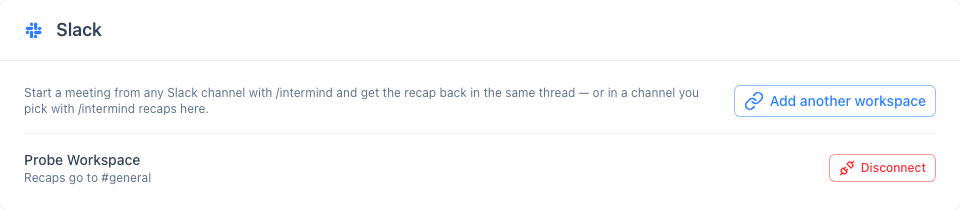
- In the Slack card, click Add to Slack
- Pick the workspace and approve
The app asks for five permissions: adding the /intermind command, posting messages as InterMIND, posting to public channels it has not been invited to, receiving the links to intermind.com that are posted, and replacing such a link with a card. It cannot read messages, files, or the member list.
The app is installed per workspace. The person who adds it is connected right away; everyone else connects their own account the first time they use the command. A workspace that installed the app before link previews existed sees Update permissions in the Slack card — the same approval flow, once.
Connecting your account
The first time you run /intermind, Slack shows you — and only you — a Connect your InterMIND account link. Open it, sign in, and confirm. The link works for 10 minutes; run the command again for a fresh one. The Home tab of the app offers the same link.
Meetings you start from Slack are hosted by your InterMIND account: your plan, your meeting list, your recap.
Commands
| Command | What it does |
|---|---|
/intermind | Starts a meeting and posts the join link in the channel |
/intermind Weekly sync | Same, with a title |
/intermind tomorrow 3pm Weekly sync | Schedules the meeting for that time and posts the join link now |
/intermind timezone Europe/Berlin | Sets the time zone your scheduled times are read in |
/intermind recaps here | Sends the recaps of your meetings to this channel |
/intermind recaps off | Stops sending recaps to a channel |
/intermind help | Lists the commands |
Anyone in the channel can open the link. People without an InterMIND account join as guests and the host admits them, exactly as with any meeting link.
Scheduling from Slack
A command that starts with a day and a time schedules the meeting instead of starting it: today 17:00, tomorrow 3pm, fri 15:00, 2026-10-01 at 10:30, each followed by an optional title. The app posts the join link in the channel right away with the scheduled time, the meeting appears in your upcoming list in InterMIND, and it lasts 60 minutes on the calendar grid. The recap comes back to the same thread when the meeting ends.
Times are read in the time zone saved with your connection — your browser's zone at the moment you connected. To change it, or if the app asks for it, run /intermind timezone Area/City once with an IANA name such as Europe/Berlin or America/New_York. A day without a time, or a time that has already passed, schedules nothing; the app tells you so, visibly only to you.
Scheduling from Slack does not write to your calendar. To put the meeting into Google or Microsoft Calendar, open the meeting in InterMIND and use Add to calendar.
Where the recap goes
- A meeting started with
/intermindgets its recap in the thread under the join message. - Every other meeting you host goes to the channel you chose with
/intermind recaps here— one channel per workspace, per person. - If you chose no channel, nothing is sent to Slack.
The Slack message carries the summary and a link to the full recap. The summary in Slack is in the recap's language; the link opens it in the language each reader uses in InterMIND.
In a private channel or a direct message the app can post only after it is invited (/invite @InterMIND). Until then the join link is still posted, and the recap arrives as a direct message from the app with a note saying why.
Meeting links become cards
Paste an InterMIND meeting link (intermind.com/xxx-xxx-xxx) or a recap link anywhere in Slack and the app replaces it with a card: the meeting's title, who hosts it, the scheduled time when there is one, and a Join the meeting button. A recap link becomes a card with the title and an Open the recap button — the recap's text reaches Slack only through the thread or the channel you chose.
The card never shows more than the meeting's join screen shows to anyone who opens the link. Links to InterMIND channels, documents or pages other than a meeting or a recap are left as they are.
The Home tab
Click InterMIND under Apps in the Slack sidebar. The Home tab shows whether your account is connected and where your recaps go, lists the commands, and has a Start a meeting button: the join link comes to you as a direct message from the app, ready to share, and that meeting's recap comes back to the thread of that message. If your account is not connected yet, the tab offers the Connect your InterMIND account link instead.
Disconnecting
Disconnect in the Slack card removes the connection between your Slack user and your InterMIND account; recaps stop. To remove the app from the whole workspace, a workspace admin removes it in Slack — InterMIND deletes the workspace's token and every connection when Slack reports the removal.
AI assistants (MCP)
Connect InterMIND to Claude, ChatGPT, Copilot, Gemini, Cursor or any other MCP client — create and schedule meetings, read recaps, transcripts and channels, search what was decided, and post to chats from the assistant you already use.
Billing & Plans
Overview of InterMIND subscription plans, pricing, and billing management.