
Calendar
Connect Google or Outlook calendar and choose the default for scheduled meetings.
Calendar
The Calendar Integration card on the Integrations page keeps meetings created in InterMIND synchronized with your calendar. What two-way sync gives you day to day is summarized on the Calendar Sync feature page.
Connecting a Calendar
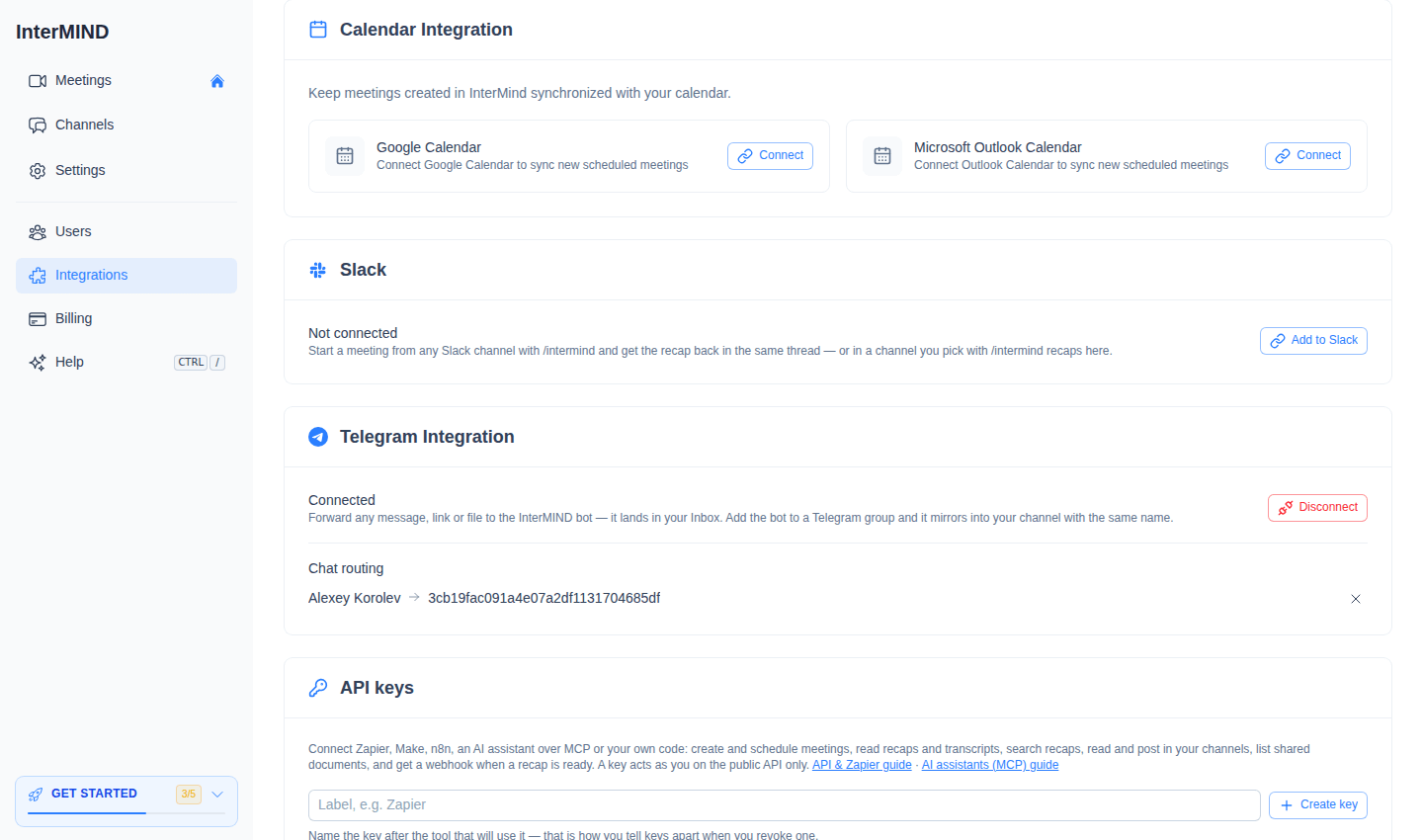
- Open the Integrations page from the sidebar
- In the Calendar Integration card, click Connect next to Google Calendar or Microsoft Outlook Calendar
- Sign in with your account in the OAuth popup
- The card shows the connected account's email
Click Disconnect next to a connected calendar to remove the connection.
Default Calendar
With both calendars connected, click Make default to pick which one is used for scheduled meetings. The current default carries a Default for scheduled meetings badge.
How It Works
- Every meeting you host has a calendar button on its row in the Meetings list. Clicking it opens your default calendar with the event pre-filled: title, join link, and the meeting recap link.
- Scheduled meetings pick up their dates and changes from your calendar. If the calendar is disconnected, meeting rows keep showing the date from the last sync until you reconnect.