
Signing In
How to sign in to InterMIND and manage your session.
Signing In
Sign-In Methods
InterMIND supports the following sign-in methods:
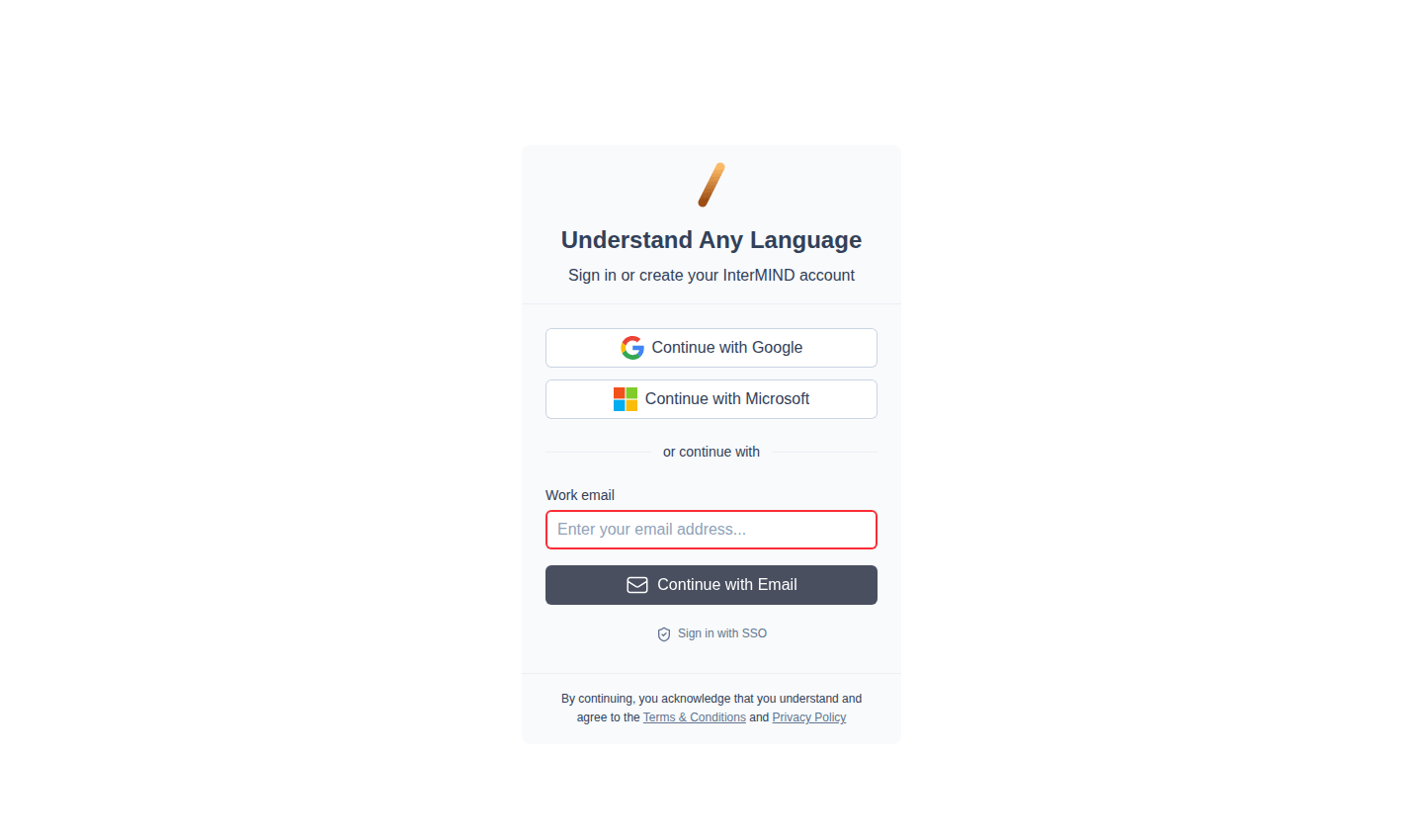
| Method | How |
|---|---|
| Click Continue with Google → select account | |
| Microsoft | Click Continue with Microsoft → sign in |
| Email (code) | Enter email → click Continue with Email → enter the 6-digit code |
| SSO | Click Sign in with SSO → enter work email → continue via your IdP |
All methods lead to the same account if you use the same email address. There is no password-based sign-in — every email login uses a one-time code.
Staying Signed In
Once signed in, your session persists across browser tabs and restarts. You don't need to sign in every time you visit InterMIND.
Signing Out
- Open the sidebar (click the hamburger menu on mobile, or see the sidebar on desktop)
- Click your profile avatar at the bottom of the sidebar
- Select Log out
Troubleshooting
| Issue | Solution |
|---|---|
| "Account not found" | Make sure you're using the same email and sign-in method you used to create the account |
| Google/Microsoft popup blocked | Allow popups for the InterMIND domain in your browser settings |
| Verification code didn't arrive | Check your spam folder, then click Resend code |
| Code rejected as invalid | Codes are 6 digits and expire — request a fresh code with Resend code |
| Session keeps expiring | Check that cookies are enabled and not blocked by browser extensions |
What's Next
- Start your first meeting — Create a meeting and invite participants
- Configure your profile — Set your name, avatar, and language