
Backup & Restore
Export all your chats as a ZIP and restore them later.
Backup & Restore
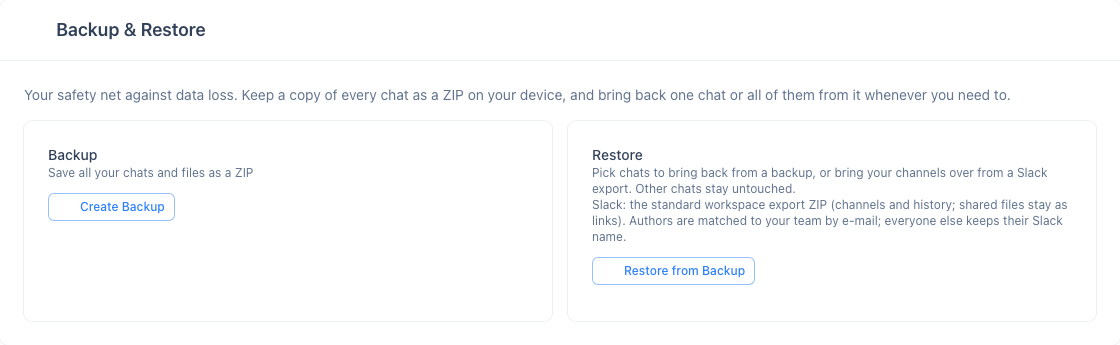
The Backup & Restore card on the Settings page lets you save all your chats as a ZIP and bring them back later. The card is shown when your plan includes data export — currently every plan does, including the free Basic tier.
What's Included
| Data Type | Description |
|---|---|
| Chat messages | All text messages from your channels |
| Transcriptions | Meeting transcription records |
| Files | Uploaded files and documents |
| Images | Shared images |
| Recordings | Conference screen recordings |
Creating a Backup
- Open the Settings page from the sidebar
- In the Backup & Restore card, click Create Backup
- A real-time progress bar tracks each step: scanning meetings → downloading files → compressing
- When complete, click Download to save the ZIP file
Restoring from a Backup
Restore selected chats from a previously created backup.
| Data Type | Description |
|---|---|
| Chat messages | All message types (chat, transcription, image, file) |
| Files | Uploaded back to your team's Storage |
| Recordings | Conference recordings uploaded to Storage |
| Metadata | Pins, reactions, translations, file names, sizes, types |
- Open the Settings page from the sidebar
- In the Backup & Restore card, click Restore from Backup
- Select a ZIP archive
- Pick which chats to restore (others stay untouched)
- Confirm — a full-screen overlay shows restore progress
- After restore, a summary shows the results along with any errors or warnings
Selected chats are replaced with the backup snapshot — any newer messages, files, or recordings added after the backup was made will be lost. Chats you don't select stay as they are.
Bringing Channels Over from Slack
The same Restore from Backup button accepts a standard Slack workspace export — the ZIP a Slack owner or admin downloads from Settings & administration → Workspace settings → Import/Export Data. InterMIND recognizes it by its contents; there is nothing to convert.
| Slack data | What happens in InterMIND |
|---|---|
| Public and private channels | One InterMIND channel each, named #channel, with the channel purpose as its note |
| Messages and threads | Imported in order with their original timestamps; each member reads them in their own language |
| Authors | Matched to your team by e-mail; everyone else keeps their Slack name on the message |
| Reactions and pins | Kept |
| Shared files | Kept as links (a Slack export carries no file contents) |
| Direct messages | Not imported |
- Export the workspace in Slack (public channels on every plan; private channels need a paid plan and Slack's approval)
- In InterMIND, open Settings → Backup & Restore → Restore from Backup and select the export ZIP
- Pick the channels to bring over and confirm
- Invite your teammates to the imported channels — members are not added automatically
Uploading the same export again updates the imported channels instead of duplicating them.