
Choosing Languages
How to select and manage your translation language in InterMIND.
Choosing Languages
Selecting Your Language
Your translation language determines what language you hear when translation is active. Each listener picks their own — how this replaces an interpreting booth is explained on the AI Simultaneous Interpretation feature page.
During a Meeting
- Open the More menu in the control bar
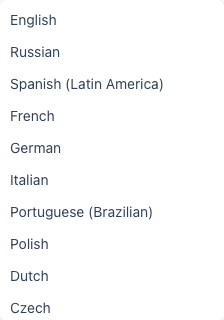
- Hover Translation language — the submenu lists all 23 languages, with the current one checked
- Click a language to select it
- Translation immediately switches to the new language
From the Sidebar
By default your translation language follows your interface language. To use a different language for translation only:
- Open the menu on your account entry at the bottom of the sidebar
- Pick Translation Language and choose a language from the submenu
- Your account entry now shows the chosen translation language — the choice is saved to your profile and syncs across devices
Choosing the same language as your interface clears the override. The pre-join screen shows the language you'll be listening in, but it is read-only there — change it from the sidebar (or, if you're joining as a guest, on the join page).
This single setting is used for:
- Real-time voice translation in meetings
- Automatic chat message translation
- Subtitles language
Supported Languages
InterMIND currently supports 23 languages for real-time translation (voice, chat messages, and shared notes — one set, three surfaces):
| Language | Native Name | Region |
|---|---|---|
| English | English | Global |
| Russian | Русский | Europe |
| Spanish (Latin America) | Español | Americas |
| French | Français | Europe |
| German | Deutsch | Europe |
| Italian | Italiano | Europe |
| Portuguese (Brazilian) | Português | Americas |
| Polish | Polski | Europe |
| Dutch | Nederlands | Europe |
| Czech | Čeština | Europe |
| Hungarian | Magyar | Europe |
| Danish | Dansk | Europe |
| Finnish | Suomi | Europe |
| Icelandic | Íslenska | Europe |
| Norwegian | Norsk | Europe |
| Romanian | Română | Europe |
| Swedish | Svenska | Europe |
| Ukrainian | Українська | Europe |
| Japanese | 日本語 | Asia |
| Korean | 한국어 | Asia |
| Turkish | Türkçe | Europe |
| Chinese (Simplified) | 中文 | Asia |
| Hindi | हिन्दी | Asia |
File translation in chat uses a wider list of 30 languages (DeepL Document API) — including Bulgarian, Greek, Estonian, Indonesian, and several other European languages not available for live voice. The platform API accepts all 23 real-time codes plus the file-only ones. Per-pair quality — including newer pairs like Hindi — is published openly on
/benchmark. Full breakdown: How many languages do we support — six numbers, not one.All 23 languages are available on every plan — pair availability is not limited by tier. Monthly translation time and text-translation word budget depend on your plan; see Usage & Limits for details.
Tips
- Set your language before the meeting from the sidebar account menu to avoid configuring it every time
- Browser language fallback — If you haven't set a language, InterMIND uses your browser's default language
- The language setting is per-user, not per-meeting. Each participant in the same meeting can use a different language
Related guides
- Hindi to English voice translator — and English to Hindi — live, in a real conversationA Hindi–English voice translator is easy to find for one phrase — and surprisingly hard to find for a real conversation: a client call, an interview, a family catch-up. The three kinds of tool, and the one that translates Hindi ↔ English live, both directions at once.
- "How many languages do you support?" — and why our honest answer is six numbers, not oneEvery vendor quotes one language count. We can't, because translation isn't one product. Here is the per-surface breakdown for InterMIND — what is filtered, why, and what we publish on the website.