
Live Subtitles
Display translated subtitles during meetings in InterMIND.
Live Subtitles
Live subtitles show the translated text of what participants are saying, displayed at the bottom of the meeting screen in real-time.
Enabling Subtitles
- Join a meeting with translation enabled
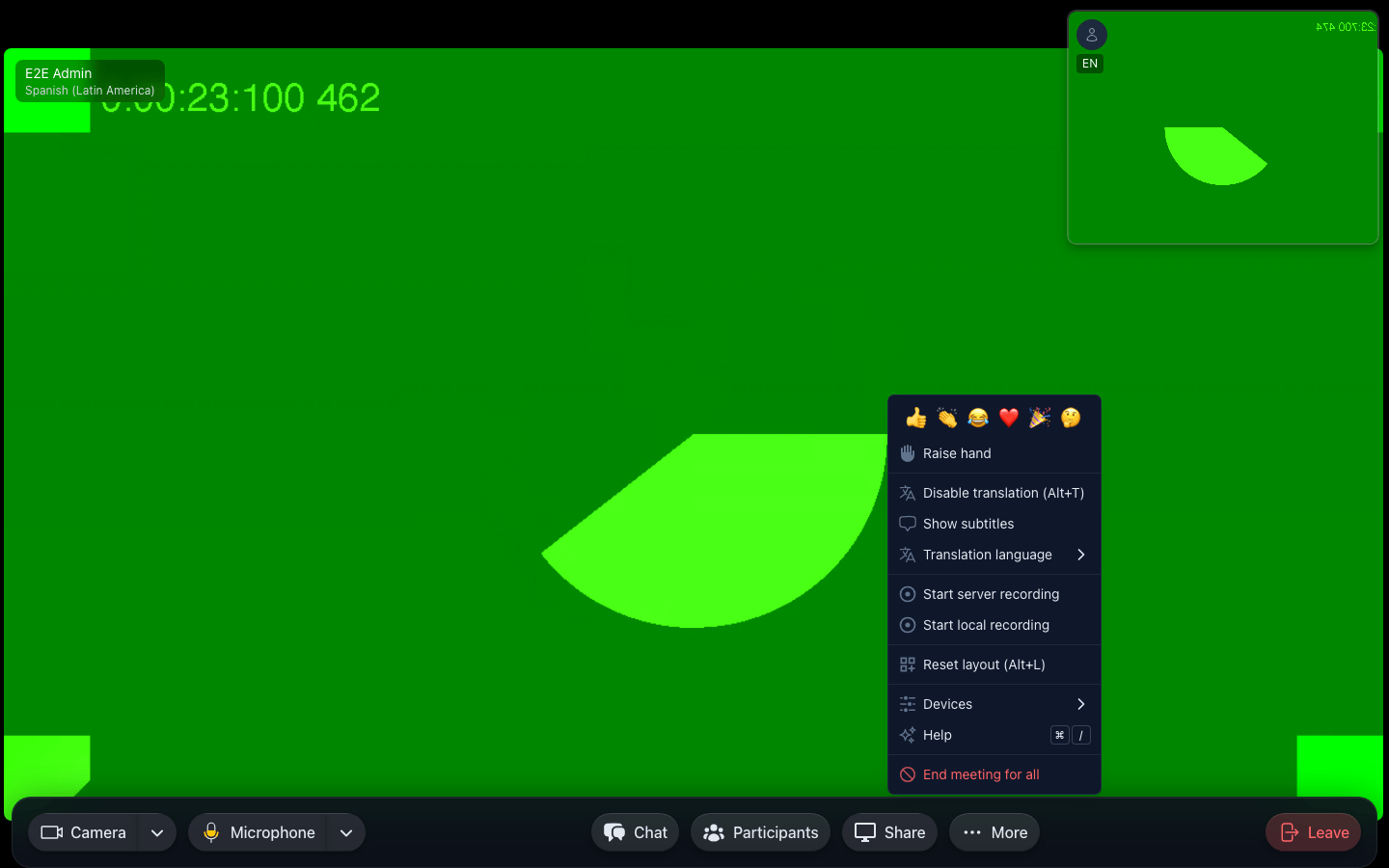
- Open the More menu in the control bar and click Show subtitles
- Translated text appears at the bottom of the screen as participants speak
- The same item becomes Hide subtitles — click it to turn them off
How Subtitles Work
- Subtitles show the translated text, not the original speech
- They appear in the language you selected as your translation language
- Subtitles update in real-time as words are recognized and translated
- Each subtitle line shows what the current speaker is saying
- When no one is speaking, subtitles fade away
RTL Language Support
The subtitle layout automatically flips to right-to-left when an RTL language is detected, so future RTL languages will render correctly. The current translation target list is left-to-right (see Choosing Languages for the full list).
Subtitle Appearance
- Subtitles appear as a banner at the bottom of the meeting screen
- They have a semi-transparent dark background for readability
- Font size is optimized for screen reading at typical viewing distances
- Subtitles don't overlap with the meeting control bar
Default Setting
Subtitle on/off state is remembered between meetings based on whatever you last set in the cockpit (per browser). There is no separate Settings toggle — the last state of the Show subtitles item in the More menu is what you'll get when you join the next meeting.
Tips for Using Subtitles
- Presentations — Enable subtitles during presentations for participants who prefer reading
- Noisy environments — Subtitles help when audio quality is poor
- Language learning — Read the translation while hearing the original to learn new languages
- Accessibility — Subtitles make meetings more accessible for participants with hearing difficulties