
Chat Translation
Chat Translation
InterMIND automatically translates chat messages so team members can communicate in their preferred languages without any extra effort.
How It Works
When a message is sent in the chat:
- The message is stored in its original language
- The system identifies all participants who use a different language — including those currently offline
- The message is translated into each required language
- Online recipients see the translation in real-time; offline participants receive translations when they reconnect
- The original text is always available if needed
Translation happens transparently — you simply type in your language, and everyone reads in theirs. The product view of this mechanism lives on the Multilingual Chat feature page.
Setting Your Chat Language
Your chat translation language follows your account language settings:
- Open the menu on your account entry at the bottom of the sidebar
- Keep the default (same as your interface language) or pick a different one under Translation Language
- All incoming chat messages are translated to that language
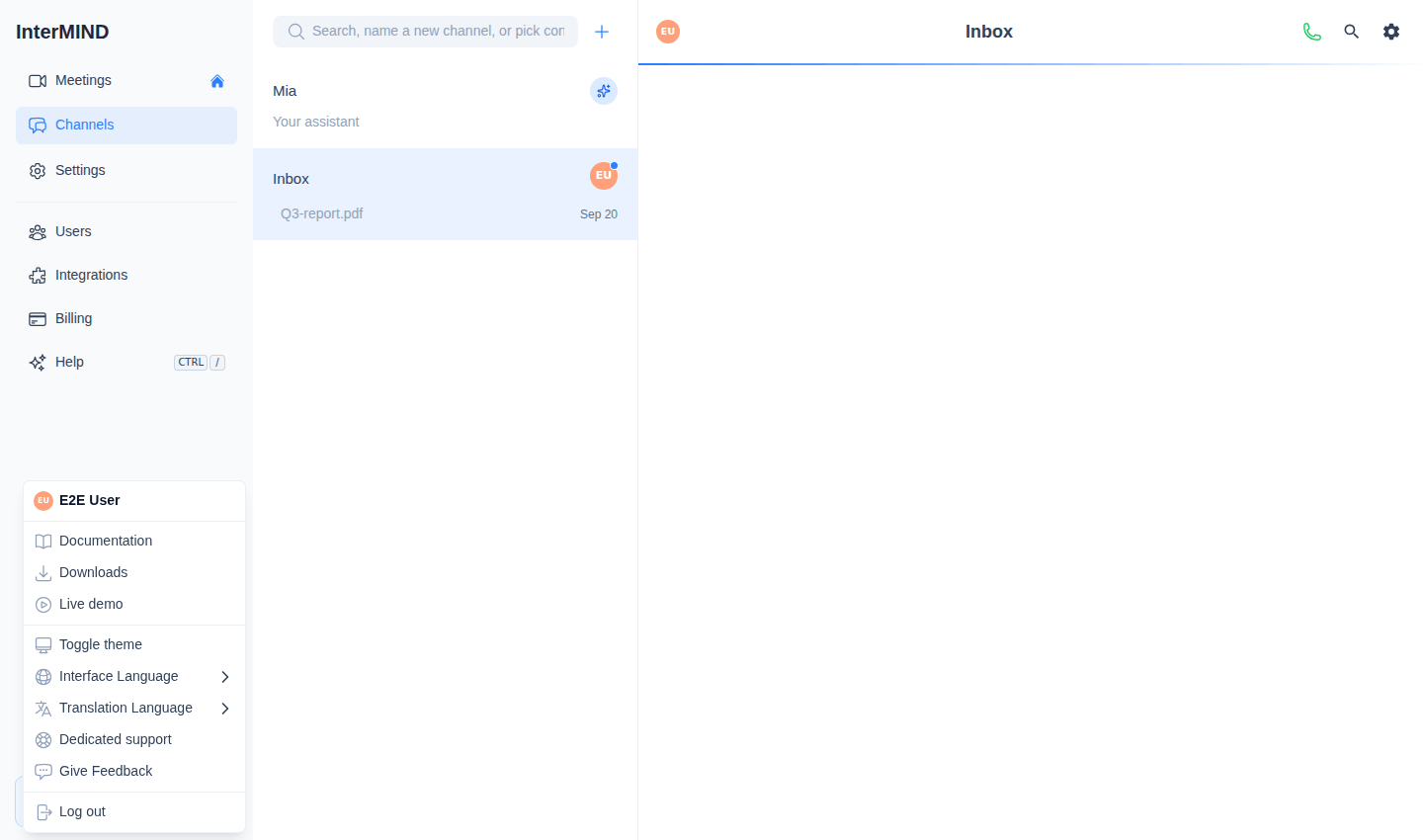
The same setting also drives in-meeting voice translation.
Viewing Original Messages
The chat panel has a Show Original with Translation display toggle. When on, each translated message is shown in a two-column layout with the original text alongside the translation. Notes have their own per-message Translated / Original / Diff switch in the preview header.
Translation Accuracy
What Works Well
- Common business phrases and terminology
- Short, clear sentences
- Standard greetings and responses
Best Practices for Clearer Translations
- Write in clear, simple sentences
- Avoid slang, idioms, or culture-specific references
- Use proper punctuation
- Break complex ideas into shorter messages
- Spell out abbreviations on first use
Translation and File Messages
- Text messages are translated automatically
- File names and captions are not translated
- Image content is not translated (only accompanying text)
Chat Translation Limits
Chat translation is unlimited on every paid plan. Only the free Basic plan carries a monthly word allowance. Usage is tracked per meeting host (the person who created the meeting) using a rolling 30-day window.
| Plan | Chat Translation |
|---|---|
| Basic | 10K words/month |
| Pro | Unlimited |
| Business | Unlimited |
| Enterprise | Unlimited |
As older usage expires, your available words increase.
When the limit is reached, new messages are still delivered but not translated. You can:
- Continue chatting without translation
- Upgrade your plan for a higher limit
- Wait for older usage to expire
Supported Languages
Chat translation supports the same 23 languages as meeting translation, on every plan. See Choosing Languages for the full list.
Tips
- Set your preferred language once in settings — all chats auto-translate
- If a translation looks off, check the original message for context
- For critical communications, consider sending both the original and a note about key terms
- Translation quality is best for commonly spoken language pairs
Long Messages
Messages longer than 1,000 characters are automatically split by paragraph breaks (\n\n) and each chunk is translated separately. A single paragraph that still exceeds 1,000 characters is broken further at sentence, clause, or word boundaries, so long text is always translated in full rather than skipped.