
Creating an Account
Creating an Account
You can create an InterMIND account using any of the following methods.
Sign Up with Google
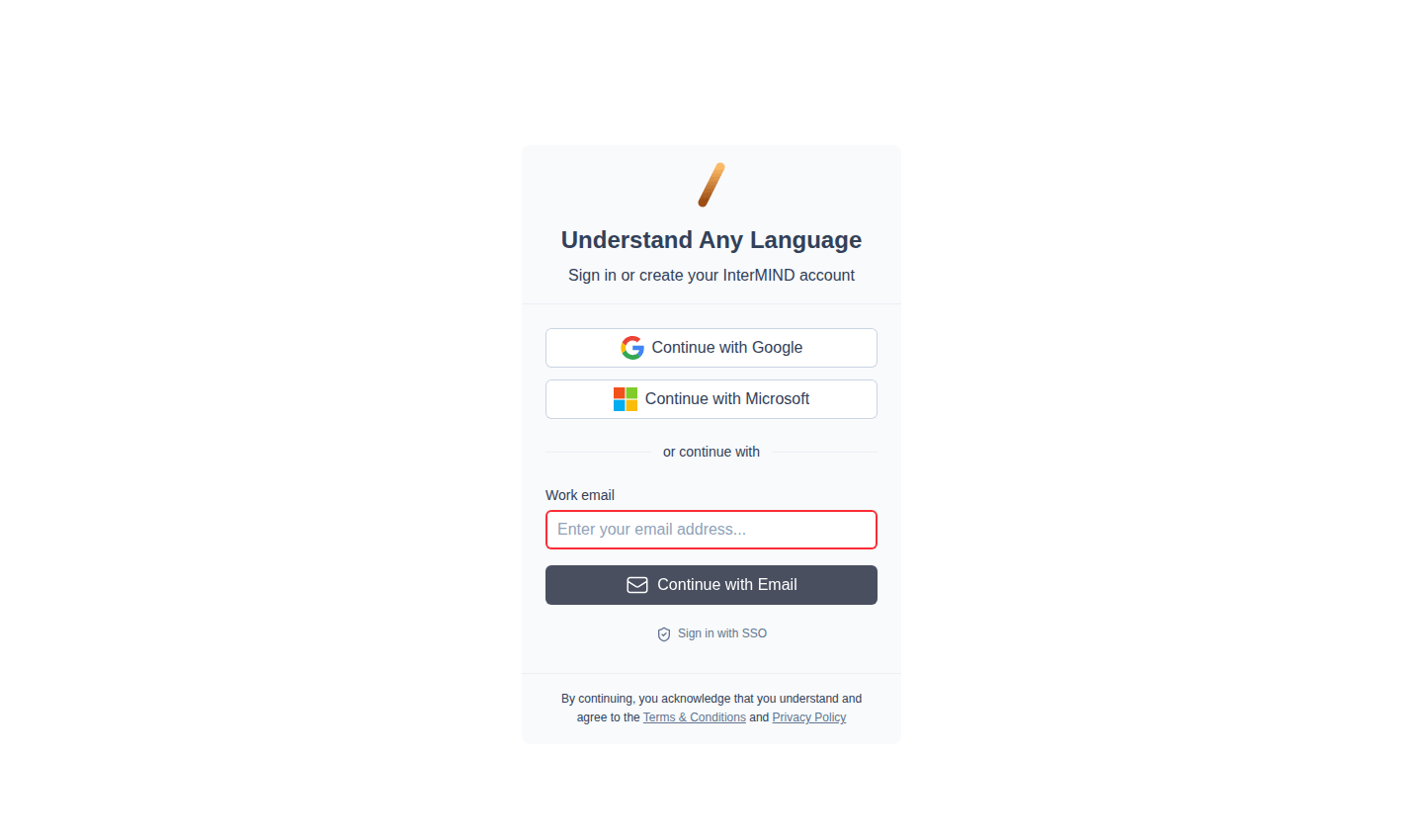
Go to the login page
Open the InterMIND login page.
Click Continue with Google
A popup will appear for Google account selection.
Select your Google account
Choose the account you want to use.
Done
You're signed in — your profile name and avatar are imported automatically.
Sign Up with Microsoft
Go to the login page
Open the InterMIND login page.
Click Continue with Microsoft
A popup will appear for Microsoft sign-in.
Sign in with your Microsoft account
You can use a personal, work, or school account.
Grant permissions
Approve the requested permissions.
Done
You're signed in — your profile name is imported automatically.
Sign Up with Email (Verification Code)
InterMIND email sign-in is passwordless — you receive a 6-digit code in your inbox each time.
Go to the login page
Open the InterMIND login page.
Enter your work email
Type your email address in the Work email field.
Click Continue with Email
A 6-digit verification code is sent to that address.
Check your inbox
Open the email from InterMIND and copy the 6-digit code (or follow the confirmation link to enter the code on a second device).
Enter the code
Paste the code into the Verification code field and click Verify Code.
Done
You're signed in. If it's your first time, an account is created automatically.
Sign In with SSO
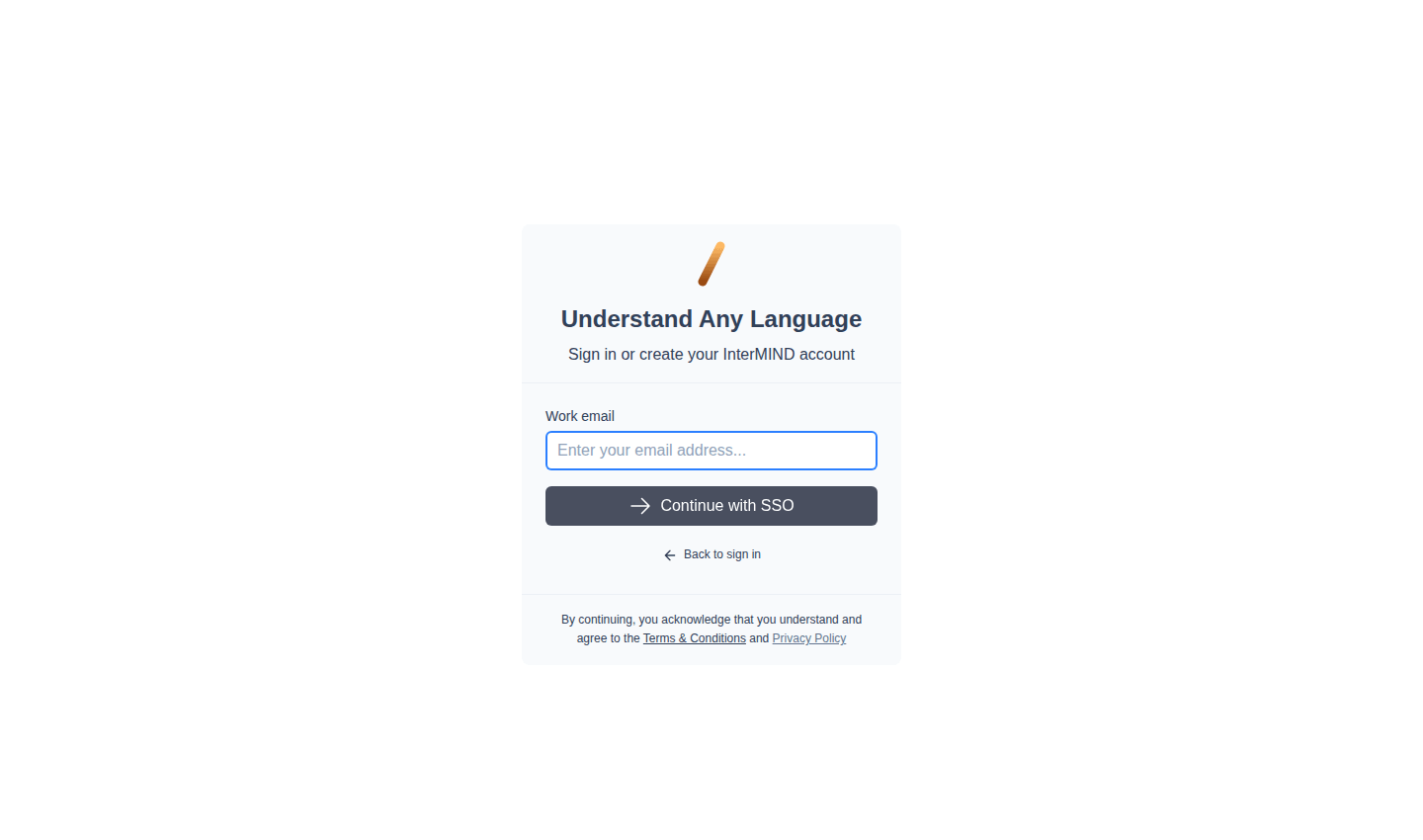
If your organization has configured SSO, click Sign in with SSO on the login page and enter your work email. You'll be redirected to your identity provider.
What Happens After Sign-Up
After creating your account:
- You start on the free Basic plan — no card required
- A team is automatically created for you
- You can immediately start your first meeting
- A 14-day free trial of a paid plan is available when you subscribe through the Pricing page (one trial per account — see Billing & Plans)
Joining via Team Invitation
If someone invited you to their team:
Click the invitation link
Open the link in the email you received.
Sign in or create an account
Use any of the methods described above.
You're added to the team
You are automatically added to the team that invited you. The team admin's subscription covers your access.