
Transcription
Record and save meeting transcripts with speaker attribution.
Transcription
Transcription captures all spoken words during a meeting and makes them available as a transcript after the meeting, with speaker attribution.
How Transcription Works
Transcription is automatic — there is no Start/Stop button. Whenever a meeting is live, speech is captured in real time:
- Every word is transcribed and attributed to the speaker who said it
- Words are collected on the server as the meeting runs
- The transcript is in each speaker's original language
Viewing the Transcript
After the meeting ends, a recap message appears in the meeting chat. Open it and switch to the Transcript tab to read the full transcript on its own page — see Meeting Recap.
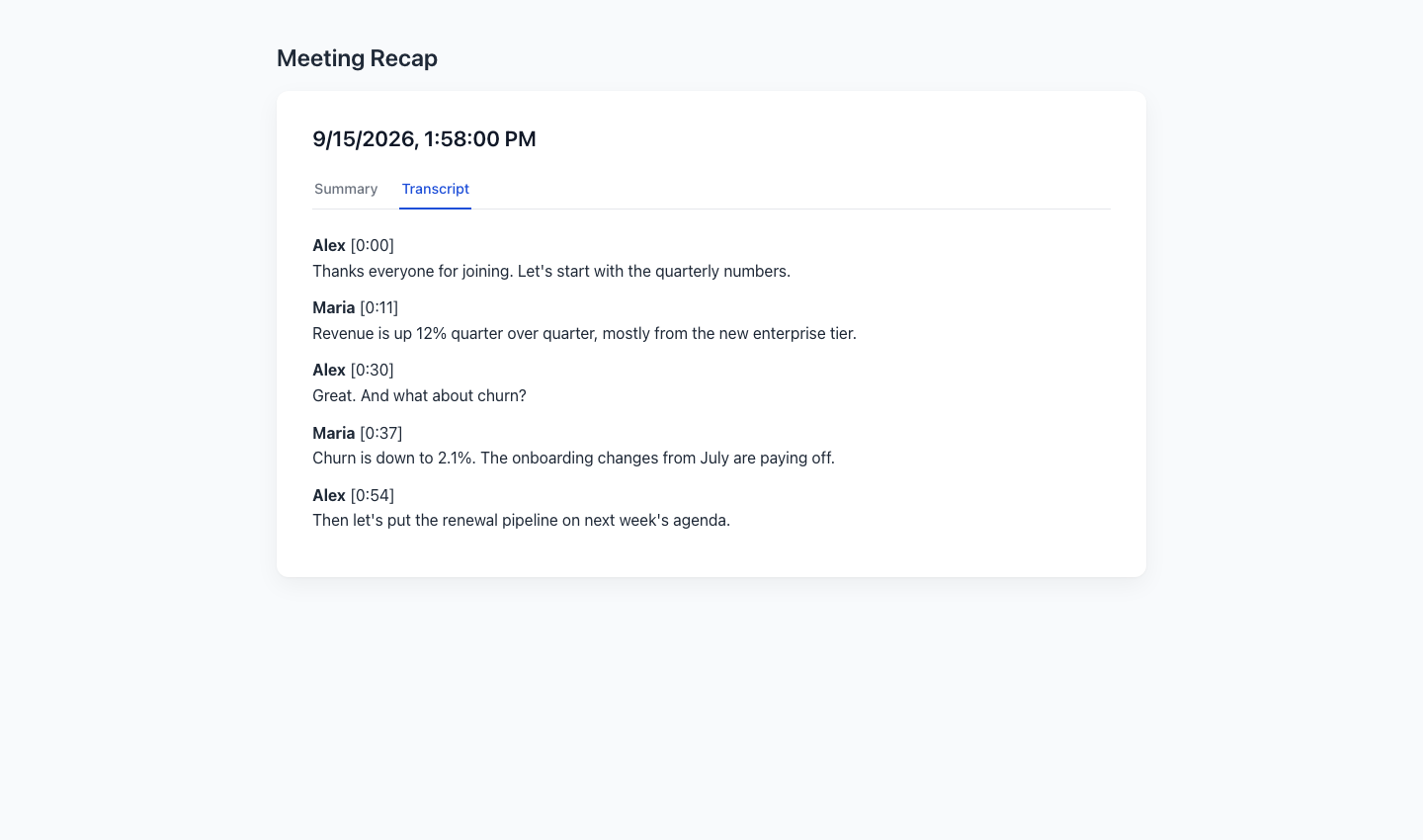
The transcript page can show the transcript translated into your language — it's generated in the speakers' original languages and translated on demand when you open it in a different language.
Use Cases
- Meeting minutes — Capture everything said for reference
- Compliance — Keep records of discussions for regulatory purposes
- Absent participants — Share the transcript with people who couldn't attend
- Review — Go back and review specific parts of the discussion
Important Notes
- The quality of transcription depends on audio quality — use a good microphone and minimize background noise
- The transcript is captured in each speaker's original language; open the transcript page in your own language to read it translated
- The transcript is produced once the meeting ends and reached from the recap in the meeting chat
Related
- Meeting Recap — Summary, transcript, and recording after the call
- Meeting Controls — In-meeting control bar
- Chat — Where the post-meeting recap lives