
Reactions & Hand Raise
Send emoji reactions and raise your hand during meetings.
Reactions & Hand Raise
Express yourself during meetings without interrupting the speaker.
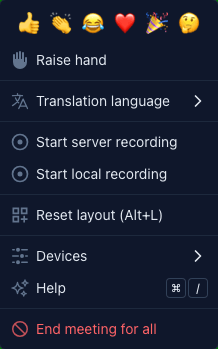
Emoji Reactions
Send quick emoji reactions that appear floating on screen for all participants.
How to Send a Reaction
- Open the More menu in the control bar — the Reactions row is at the top
- Choose an emoji: 👍 👏 😂 ❤️ 🎉 🤔
- The emoji appears as a floating animation on everyone's screen
- Reactions automatically disappear after a few seconds
When to Use Reactions
- 👍 Thumbs up — Agree with something or acknowledge
- 👏 Clapping — Applaud a presentation or idea
- 😂 Laugh — React to something funny
- ❤️ Heart — Show appreciation
- 🎉 Celebration — Celebrate an achievement
- 🤔 Thinking — Flag a doubt without interrupting
Reactions are a great way to provide feedback during presentations without unmuting your microphone.
Hand Raise
Raise your hand to signal that you want to speak, without interrupting the current speaker.
How to Raise Your Hand
- Open the More menu and click Raise hand — it sits right under the reactions row
- A hand icon appears on your video tile, visible to all participants
- The host and other participants can see who has their hand raised
- The item becomes Lower hand — click it to lower your hand
Hand Raise Best Practices
- Raise your hand during presentations to queue up for questions
- The host can see a list of raised hands and call on participants in order
- Lower your hand after you've spoken
- Hand raise status persists until you manually lower it or leave the meeting
Visibility
- Both reactions and hand raises are visible to all participants in the meeting
- Reactions appear as floating animations across the meeting screen
- Raised hands show as an indicator on the participant's video tile and in the participants sidebar