
File Sharing
File Sharing
Share files, images, and documents directly in InterMIND channels and meeting conversations. Each upload can be up to 25 MB.
Uploading Files
Drag and Drop
The easiest way to share a file:
- Drag a file from your computer
- Drop it onto the chat area
- The file uploads automatically and appears in the chat
Upload Button
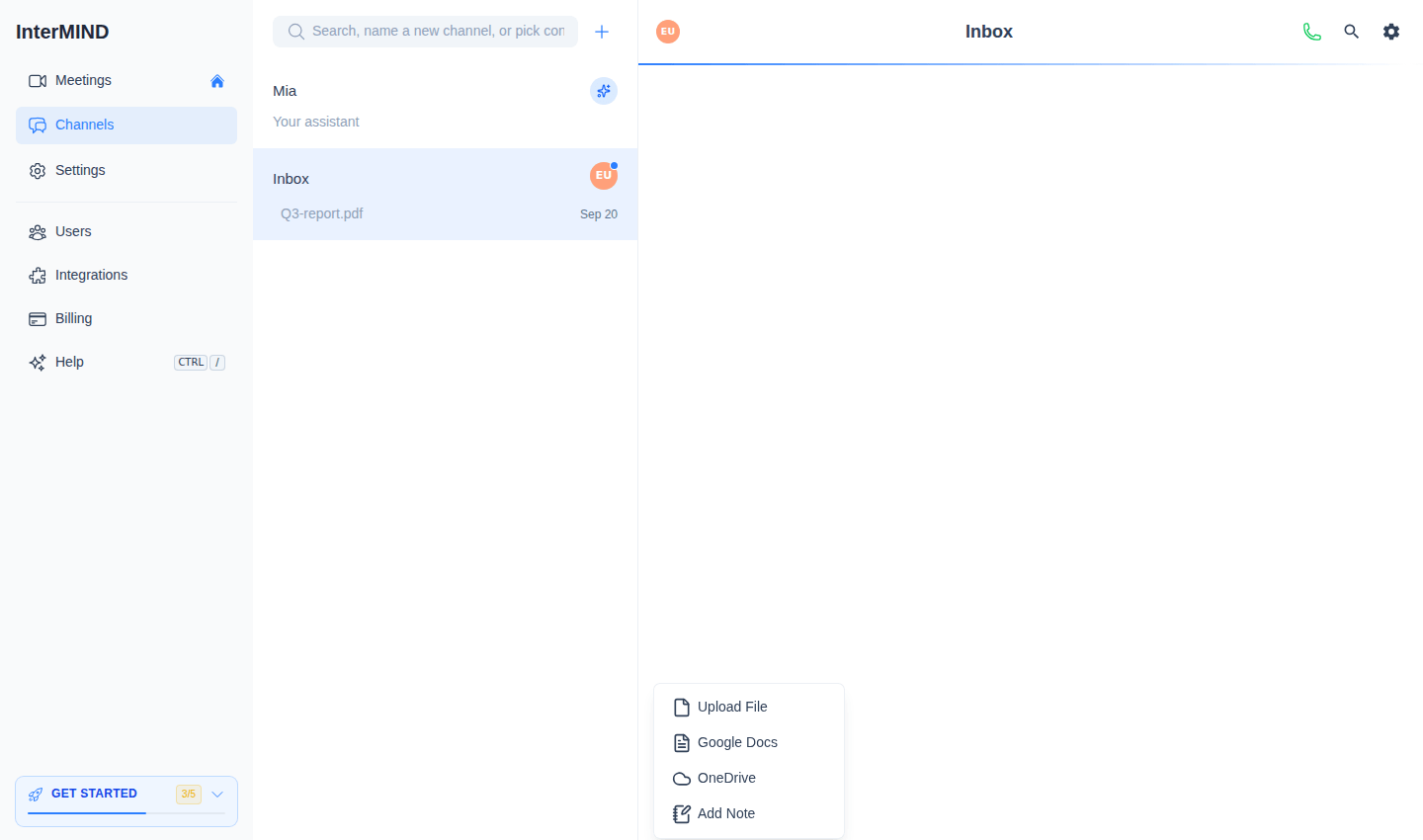
- Click the + button to the left of the chat input
- Choose Upload File and pick a file from your computer
- The file uploads and appears as a message in the chat
The + menu also offers Add Note — a shared note written in chat instead of an uploaded file.
Pasting Images
You can paste images directly from your clipboard:
- Copy an image (screenshot, from a webpage, etc.)
- Click in the chat input
- Press Ctrl+V (or Cmd+V on Mac)
- The image is uploaded and shared
Linking Cloud Documents
The + menu can also link documents from cloud storage:
- Click the + button next to the chat input
- Choose Google Docs or OneDrive
- Connect your account (first time only) and pick a document
The document appears in chat as a link — recipients open it with their own access rights in the cloud. During a live meeting, a linked document can be opened for the whole conference — see Sharing Documents & Notes In-Call.
Supported File Types
Images
Supported image formats:
- JPEG / JPG
- PNG
- GIF
- WebP
- SVG
Images display as inline previews in the chat. Click an image to view it full-size.
Documents
You can share various document types:
- PDF files
- Office documents (Word, Excel, PowerPoint)
- Text files
- Other common file formats
Documents appear as download links with file name and size. Documents shared by others open translated into your language — see Document Translation — and each document is summarized automatically, with the key points readable in your language — see Document Summaries.
Storage Limits
File uploads count toward your team's storage quota:
| Plan | Storage Limit |
|---|---|
| Basic | 1 GB |
| Pro | 30 GB |
| Business | 1 TB |
| Enterprise | 5 TB |
Checking Storage Usage
View your team's storage usage:
- Open the Users page from the sidebar (owners) or the Billing page
- The Storage Usage banner / card shows used vs. available space
- A progress bar indicates how close you are to the limit
When Storage is Full
If your team reaches the storage limit:
- You cannot upload new files
- Existing files remain accessible
- Upgrade your plan or delete old files to free up space
File Management
Downloading Files
- Click on any shared file to download it
- Images can be saved by right-clicking and choosing "Save Image"
File Visibility
- Files shared in a meeting chat are visible to all meeting participants
- Files shared in a channel are visible to all channel members
- Files in channels persist in chat history indefinitely; files in ad-hoc meeting chats are deleted when the meeting chat is purged after the call
Recording Files
Screen recordings made during meetings are also stored as files:
- Recordings are saved to the team's storage
- They appear in the chat as well as in the team's file browser
- See Screen Sharing & Recording for details
Tips
- Compress large images before sharing to save storage space
- Use the team's file browser (see Team Storage) to manage all shared files
- Storage usage is shared across the entire team — coordinate with team members if space is limited
Related
- Document Summaries — Every shared document, summarized automatically in your language
- Document Translation — Read shared PDF and Office files in your language
- Team Storage — Detailed storage management and file browsing
- Screen Sharing & Recording — Recordings also count toward storage
- Billing & Plans — Upgrade your plan for more storage