
Document Summaries
Document Summaries
Every document shared in an InterMIND channel or meeting chat is summarized automatically — there is no button to press. A few moments after the file lands, its card offers an AI summary: the key points as short bullets, each linked back to the exact paragraph it came from, readable in your own language. The feature page shows what that looks like.
Summaries are included on every plan, at no cost and with no quota.
Reading a Summary
Each file card in chat carries a status strip with two labeled links:
- AI summary — opens the summary
- Preview — opens the document itself
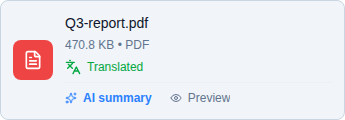
Clicking the card body also opens the document, like in any messenger. While the summary is being prepared, the strip shows Preparing summary… and flips on its own when it's ready — no reload needed.
The Summary View
The summary opens in a resizable window with two tabs:
- Summary — the key points as bullets. Each bullet ends with a ¶ link; clicking it jumps to the exact source paragraph, so every claim can be checked against the document.
- Extracted text — the document's full text as it was read from the file.
The Open document button in the header opens the original file in the built-in preview — with document translation applied if the file is in another language.
Your Language
The summary is written in the document's own language first, then translated for each reader:
- You see the summary in your language — the same language your meeting translation uses
- If your translation isn't ready yet, the original appears first and is replaced automatically a few seconds later
- The extracted text is never translated — it stays the document's source of truth, so the ¶ links always land on the author's exact words
Supported Files
Summaries cover the document formats shared in chat:
| Family | Extensions |
|---|---|
| Word / text documents | DOC, DOCX, DOCM, ODT, RTF |
| PDF (with a text layer) | |
| Presentations | PPT, PPTX, PPSX, PPTM, ODP |
| Spreadsheets | XLS, XLSX, XLSM, ODS, CSV |
| Plain text | TXT, MD, Markdown |
| E-books | EPUB |
Very large documents are summarized from the beginning of the text; the Extracted text tab notes when the text was truncated.
Card Statuses
When a summary can't be produced, the card says why instead of showing a broken link:
| Status | Meaning |
|---|---|
| Preparing summary… | Extraction succeeded; the summary is being written |
| Scanned document | The pages are images — there is no text layer to read (OCR is not performed yet) |
| This file has no readable text | The file opened, but contained no extractable text |
| Password-protected file | Encrypted documents are not opened |
| File is too large for text extraction | Over the extraction size ceiling |
| Text extraction isn't supported for this file type | Format outside the table above |
| No summarizable content found | Text was extracted but held no summarizable substance — the Extracted text link still opens it |
| Sent from mobile / Sent via Telegram | Files arriving from the mobile app or Telegram aren't extracted yet |
| Linked document | Google Drive / OneDrive links share a pointer, not the file — content stays with its provider |
| Summary generation failed | The summary was retried and gave up; the extracted text remains available |
Files shared before the feature launched are not summarized retroactively.
Privacy
Document content shared into a meeting is treated with the same care as the meeting transcript:
- Text extraction runs in your browser — the file's text is read on your machine, not mailed to a third party for parsing
- The summary is written by the AI gateway your organization selects — Azure OpenAI in the EU Data Zone by default, Vertex AI EU or Amazon Bedrock Frankfurt by choice, or your own endpoint — with zero data retention and no training on your content; the gateways and regions are listed under AI features
- Extracted text and summaries are stored on InterMIND servers only, never in public file storage, and are readable only by members of the meeting or channel
Summaries and the Meeting Recap
Document summaries feed the meeting recap: when a recap is written, the documents shared during the session contribute their summaries alongside what was said. A session with no speech but with shared documents still produces a recap.
Related
- File Sharing — Upload and share files in chat
- Document Translation — Read shared files in your language
- Meeting Recap — Where document summaries surface after the call