
Keyboard Shortcuts
All keyboard shortcuts available in InterMIND — global, meetings, and chat.
Keyboard Shortcuts
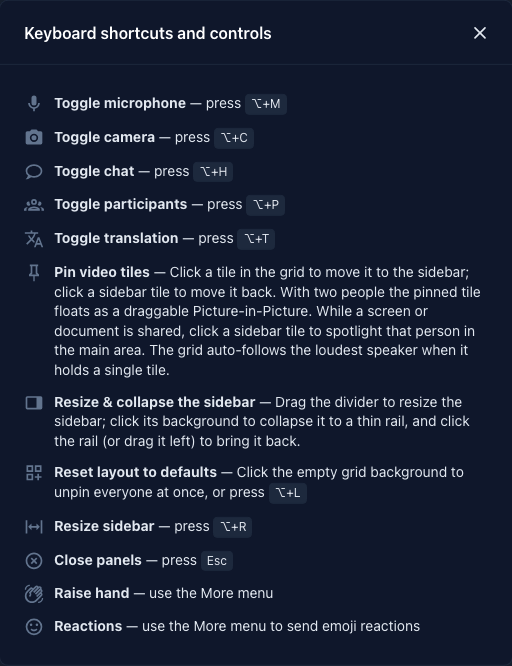
InterMIND uses the physical Alt key (called Option on macOS) for most in-meeting shortcuts, so they work the same on every keyboard layout.
Global
These work anywhere in the app.
| Shortcut | Action |
|---|---|
| Cmd/Ctrl + / | Open the Mia panel (the documentation help when signed out) |
| Esc | Close the topmost panel — the chat sidebar first, then the participants sidebar. Skipped while a dialog is open, so the dialog handles its own Esc. |
In a Meeting
Active only inside a meeting room. Disabled while a modal dialog is open.
| Shortcut | Action |
|---|---|
| Alt/Option + M | Toggle your microphone |
| Alt/Option + C | Toggle your camera |
| Alt/Option + T | Toggle real-time translation |
| Alt/Option + H | Toggle the chat sidebar |
| Alt/Option + P | Toggle the participants sidebar |
| Alt/Option + L | Reset the stage layout to defaults |
| Alt/Option + R | Cycle chat / participants sidebar width |
In Chat
When the chat surface is focused (in-meeting sidebar or a standalone channel on the Channels page).
| Shortcut | Action |
|---|---|
| Cmd/Ctrl + F | Open chat search |
| Enter (in message box) | Send the message |
| Shift + Enter (in message box) | Insert a newline |
| Alt/Option + ↑ | Recall your previous message |
| Alt/Option + ↓ | Recall the next message in history |
Scrolling the History
| Shortcut | Action |
|---|---|
| PageUp / PageDown | Page the message history — works even while you're typing |
| ↑ / ↓ | Scroll the history a line at a time (only when the message box is empty; otherwise they move the caret) |
| Home / End | Jump to the oldest / newest message (same rule as ↑ / ↓) |
Inside Chat Search
| Shortcut | Action |
|---|---|
| Enter | Jump to the next match |
| Shift + Enter | Jump to the previous match |
| ↑ / ↓ | Navigate search history |
| Esc | Close search |
Notes
- Alt vs Option — same physical key. On macOS it's labelled Option; on Windows / Linux it's Alt. Shortcuts use the key's physical position, so they work regardless of language layout.
- Modals take priority — when a dialog is open (sign-in, settings, file picker), meeting shortcuts are suspended so you can type freely.
- No conflict with the browser — InterMIND avoids Cmd/Ctrl combos that overlap with browser shortcuts (Ctrl+T, Ctrl+W, etc.), except for Cmd/Ctrl+F in chat (intentional) and Cmd/Ctrl+/ for help.
Related
- Meeting Controls — Visual equivalents in the control bar
- Messages — Chat message basics