
Gmail and Google Calendar add-on
Gmail and Google Calendar add-on
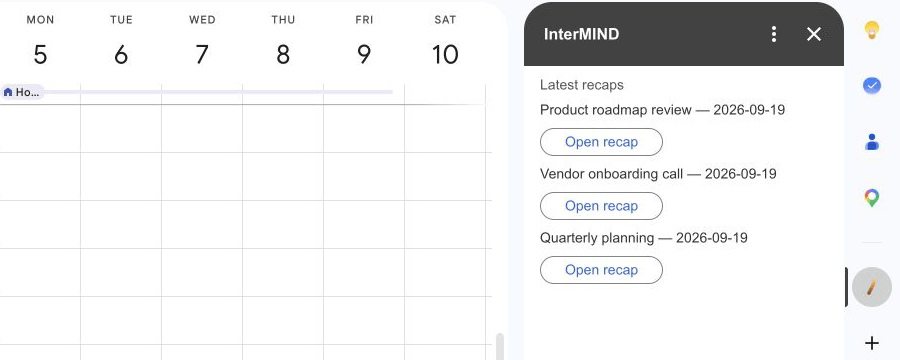
The InterMIND add-on for Google Workspace puts two actions into the right-hand side panel of Gmail and Google Calendar: create a meeting link, and open your newest recaps. It is one add-on for both — install it once and the panel appears in Gmail and in Calendar.
The add-on is published in Google Workspace Marketplace and is free of charge.
Installing
- Open the InterMIND listing in Google Workspace Marketplace
- Click Install and approve
- Open Gmail or Google Calendar and click the InterMIND icon in the side panel on the right
You can install it for your own Google account. A Google Workspace administrator can install it for the whole organization from the same listing.
Connecting your account
The add-on is connected with an InterMIND API key:
- In InterMIND, open Integrations from the sidebar and find the API keys card
- Click Create key, label it (for example "Google Workspace") and copy the key — it starts with
imk_and is shown once - In the side panel, paste the key into InterMIND API key and click Connect
How keys are created and revoked is described in API & Zapier.
What the panel does
| Section | What it does |
|---|---|
| New meeting | Create meeting makes a meeting link you host; the title is optional. The panel shows the link with an Open meeting button. Paste the link into a mail or an event — anyone who opens it knocks and you admit them |
| Latest recaps | Show latest recaps lists your three newest finished recaps: title, date and an Open recap button for each |
| Disconnect | Removes the key from the add-on |
Meetings created from the panel are hosted by your InterMIND account: your plan, your meeting list, your recap.
The same two actions are also published as steps for Google Workspace Studio — Create an InterMIND meeting and Get latest InterMIND recaps — for accounts where Studio offers add-on steps.
What the add-on can access
The add-on requests no access to your Google data. It asks only to run as a Gmail and Google Calendar add-on and to connect to intermind.com. It does not read your mail or your calendar, does not join meetings and does not read transcripts.
On the InterMIND side it sees only what the key allows: meetings you host and recaps of meetings you hosted. The key is stored in your own add-on properties at Google and is used only for calls to intermind.com.
Disconnecting
Click Disconnect in the side panel, or revoke the key in Integrations → API keys. After a key is revoked the panel asks for a new one. To remove the add-on itself, uninstall it from Google Workspace Marketplace.
Slack
Start an InterMIND meeting from any Slack channel with /intermind — now or at a time you name — and get the recap back in the same thread or in a channel you choose. Meeting links unfurl into cards; the Home tab starts a meeting with one click.
Billing & Plans
Overview of InterMIND subscription plans, pricing, and billing management.