
Users & Organization
For owners and admins — invite members, assign roles, manage shared storage, export the team audit log, and set your organization name.
Users & Organization
This section is for owners and admins. Regular members can skip it — your role gives you everything you need by default.
Member management lives on the Users page (invitations, roles, storage, the team audit log), while your organization name is set on the Billing page. What members get out of a shared organization — chat, storage, integrations — is summarized on the Team & Collaboration feature page.
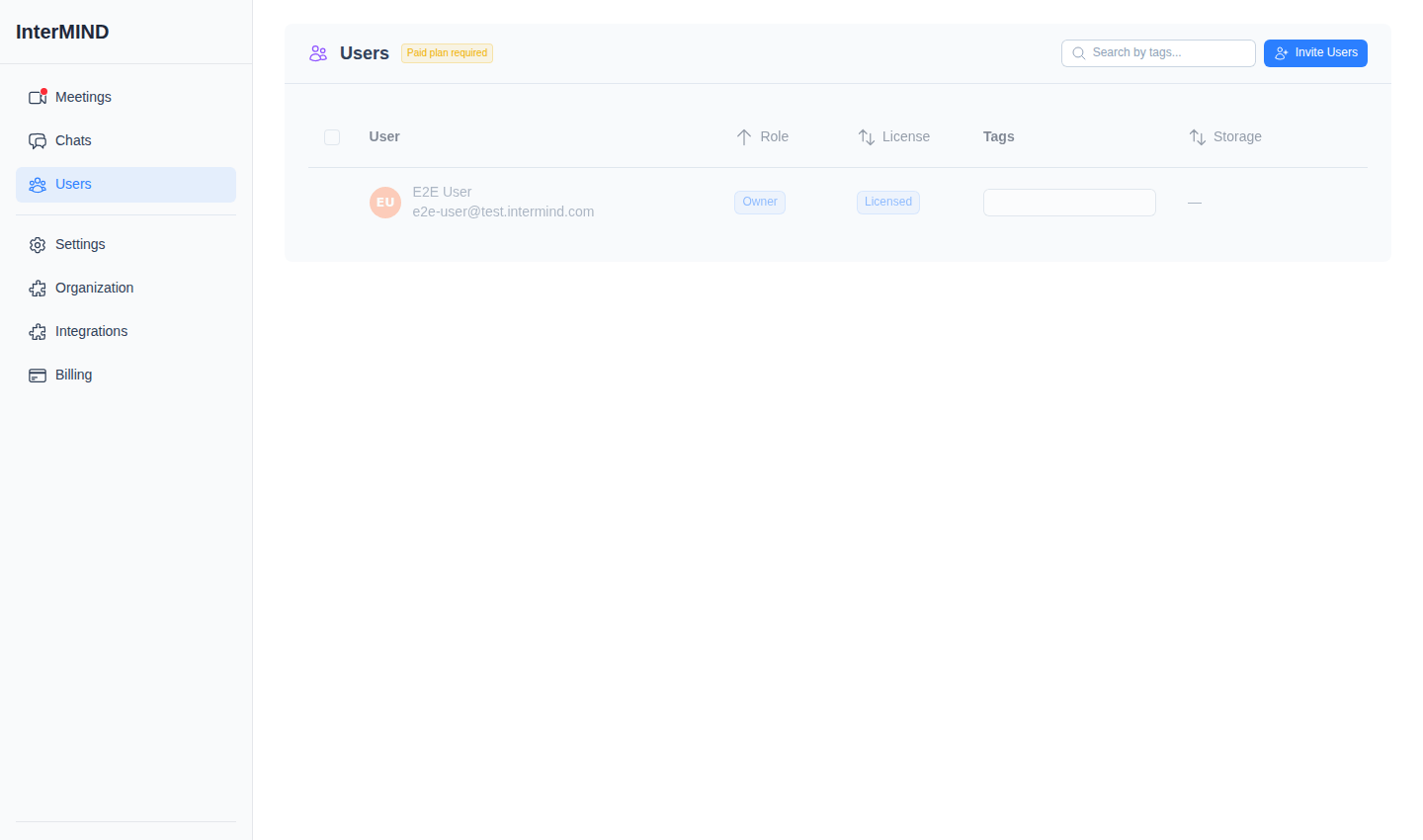
How It Works
- Every user automatically belongs to an organization (named "{Your Name}'s Team" by default)
- You can invite others to join via email, link, bulk import, or directory sync
- Members share a storage pool and can participate in shared channels
- Each user belongs to at most one organization at a time — accepting another invitation replaces the current one
Roles
| Role | Badge Color | Description |
|---|---|---|
| Owner | Primary | The organization creator; full control |
| Admin | Info | Elevated privileges, assigned by the owner |
| Member | Neutral | Standard member (default role) |
| Guest | Warning | Joined via meeting link; limited access |
Role Assignment
- Owner — Automatically set for the person who created the organization; the role is immutable and cannot be reassigned
- Admin — Promoted from the Users page by the owner or by another admin. Demoting an admin back to member is owner-only, and nobody can change their own role
- Member — Default role when joining via invitation or domain auto-join
- Guest — Automatically assigned when someone joins a meeting via link without being a member
Organization Name
You can customize your organization name on the Billing page (owners and admins only) — see Usage & Invoices. The name shows up to teammates and on shared invitations.
Quick Links
- Inviting Members — All ways to add people
- Managing Members — Roles, tags, search, and bulk actions
- Storage — Shared storage pool and file management