
Your First Meeting
Start your first video meeting with real-time translation in minutes.
Your First Meeting
This guide walks you through creating and running your first meeting with real-time translation.
Start a Meeting
After signing in, open the Meetings page from the sidebar:
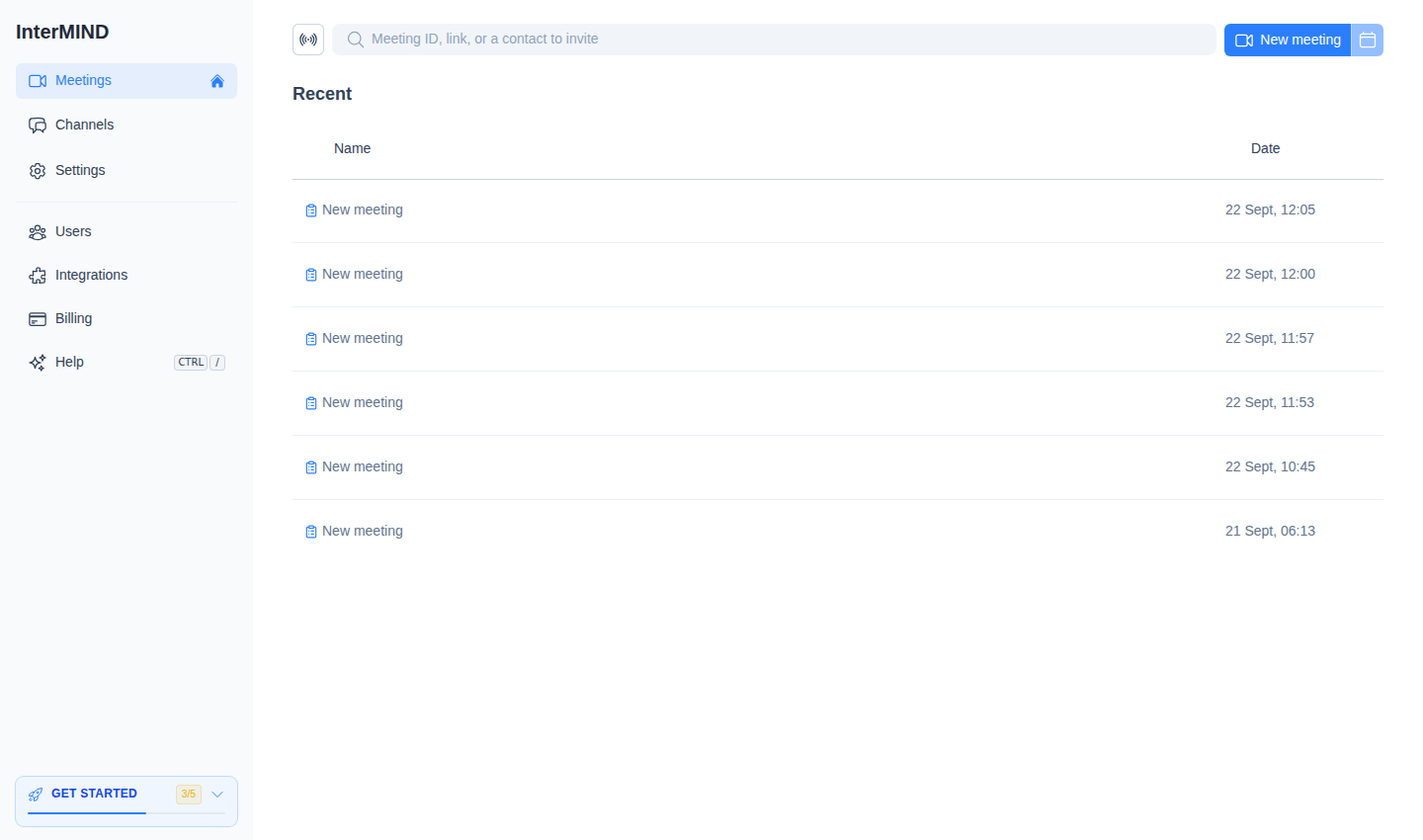
- New meeting — Click New meeting. The meeting is created and you go straight into it, through the pre-join screen. To get the link without joining, use Copy link in the row's ⋯ menu.
- Join or invite — Paste a meeting ID or URL into the search field to join — or type a contact's name or email to send them an invite.
- Schedule for Later — Click the calendar button on the meeting's row to open Google Calendar or Outlook with the meeting link pre-filled.
Pre-Join Setup
Before entering the meeting room, you'll see the Pre-Join Setup screen:
- Camera preview — See how you look before joining
- Microphone selection — Choose which microphone to use
- Camera selection — Choose which camera to use
- Mute/unmute — Start with camera or microphone off
Click Join when you're ready.
There is no switch for this screen — InterMIND skips it by itself once you've joined with a given camera / microphone / speaker setup, and shows it again when that setup changes. See Meeting Defaults.
Enable Translation
Once in the meeting:
- Open the More menu in the control bar at the bottom of the screen
- Click Enable translation (language icon) to turn on real-time translation — this item appears only when the meeting has more than one language in play
- Set your language from the Translation language submenu in the same More menu — this is the language you want to hear
- When other participants speak, their words are translated into your chosen language in real-time
You'll hear the translated audio automatically. You can also enable subtitles to see the translation as text.
Invite Others
Share the meeting with others:
- Copy the meeting link from the address bar or the share button
- Send it to participants via email, chat, or any messaging app
- Participants with accounts can click the link and join directly
- Participants without accounts can join as guests (the meeting host must approve them)
Use Meeting Controls
The control bar at the bottom provides quick access to:
| Control | Function |
|---|---|
| 📹 Camera | Turn camera on/off |
| 🎤 Microphone | Mute/unmute your microphone |
| 💬 Chat | Open the in-meeting chat sidebar |
| 👥 Participants | Open the participants panel |
| 🖥️ Screen | Share your screen |
| ⋯ More | Reactions, raise hand, translation, subtitles, recording, devices |
| 🚪 Leave | Leave the meeting |
For details on each control, see Meeting Controls.
What's Next
- Learn about meeting controls — Camera, microphone, screen sharing, and more
- Set up translation — Choose languages and configure subtitles
- Use the chat — Send messages during and outside meetings
- Invite your team — Add team members to your organization