
Integrations
Integrations
InterMIND integrates with external services in one place: your own connections — calendar, Slack, Telegram, API keys, AI assistants — and the team-level ones — directory sync, domain management and SSO.
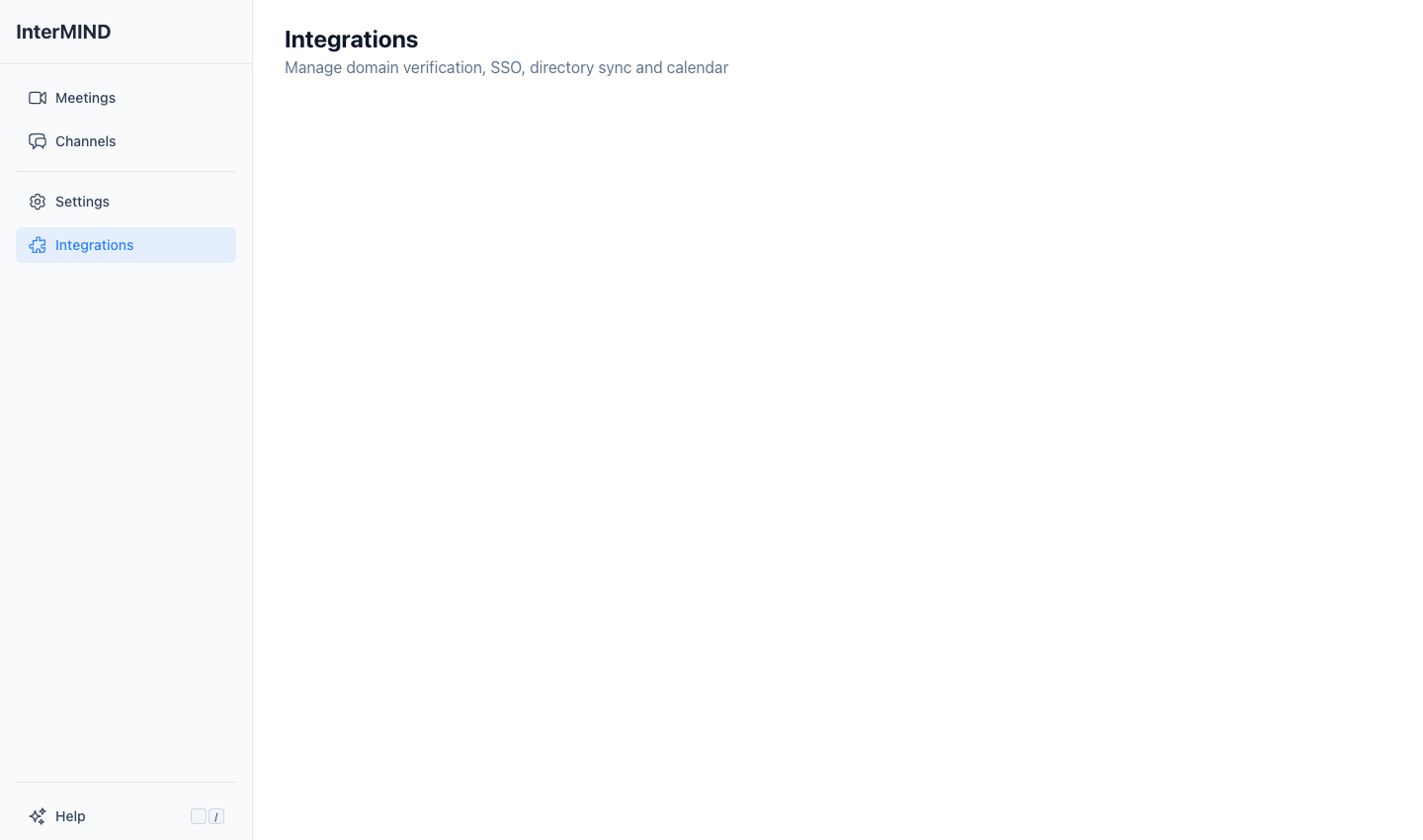
The Integrations page is reached from the sidebar. Which cards appear depends on your role and plan:
| Block and card | Who sees it |
|---|---|
| Your connections — Calendar, Slack, Telegram, API keys, AI assistants (MCP) | Every signed-in member |
| Team — Directory Integration | Team owners and admins, on every plan |
| Team — SSO, Domain Management | Team owners and admins. On a plan without them the cards are shown under Not in your plan with the plan they need; clicking one names the plan |
Members who do not administer the team do not see the Team block.
Domain Management
Verify your organization's domains to enable SSO and automatic team membership.
Adding a Domain
- Open the Integrations page from the sidebar
- In the Domain Management card, type your domain (e.g.,
yourcompany.com) in the input field - Press Enter, comma, or space to add it
- The domain appears with a "pending" status
Verifying a Domain
Domains are verified via DNS TXT records:
- Copy the verification code shown for your domain
- Add a DNS TXT record in your domain registrar (e.g., GoDaddy, Cloudflare)
- Use the verification code as the TXT record value
- Click Verify All or wait for the 60-second automatic check
- Once DNS propagates, the domain status changes to "verified" ✓
Domain Statuses
| Status | Icon | Meaning |
|---|---|---|
| Verified | ✓ | Domain confirmed — SSO can be enabled |
| Pending | ⏳ | Waiting for DNS verification |
| Invalid | ✗ | DNS check failed — verify TXT record |
SSO
Available on: Business and Enterprise plans
Requires: At least one verified domain
Members signing in with an email on one of your verified domains join your team automatically (see Domain Management above). With an identity provider configured in the SSO card, they sign in through it: login page → Sign in with SSO → work email → your IdP.
Identity Provider Configuration
Follow the step-by-step SSO Setup guide for Okta, Microsoft Entra ID, and Google Workspace.
| Provider | Configuration |
|---|---|
| OIDC / OpenID Connect | Issuer URL, Authorization URL, Client ID, Client Secret |
| Google Workspace | Verified domain only — members use their Google account |
Directory Integration
Sync your organization's user directory to simplify team management.
Supported Providers
| Provider | Permissions |
|---|---|
| Google Workspace | Read-only access to user directory |
| Microsoft 365 (Entra ID) | Read-only access to user directory |
Connecting a Directory
- Open the Integrations page from the sidebar
- In the Directory Integration card, click Connect next to your provider
- Sign in with an admin account in the OAuth popup
- Grant read-only access to the user directory
- The connection status updates to "Connected"
Important: An admin account on the provider side is required. Only read access to the user directory is requested — InterMIND never modifies your directory.
Disconnecting
Click Disconnect next to a connected provider to remove the directory integration.
Related guides
- How to bring your Telegram chats into InterMIND — and read them in your own languageThe InterMIND Telegram bot mirrors your groups, relays your one-on-one chats, and keeps anything you forward — one-way, with no dialogs to configure. The full guide: connecting your account, the three routing rules, what exactly lands in your channels, and what stays private.
- Email to channel: how any service posts into your team chat without a bot — and why an address beats a bot tokenEvery InterMIND channel has its own email address. Point a monitoring tool, a ticketing system, a CRM or a CI pipeline at it and the message lands in the channel for everyone, attachments intact, read by each member in their own language. The full mechanics — what arrives, what is stripped, the limits — and a side-by-side with bot-based integrations on setup, secrets, retries and who can switch it off.
- InterMIND for Slack: how it works — start a meeting with /intermind, get the recap back in the thread (2026)The InterMIND app for Slack adds one slash command. /intermind starts a meeting from the channel you are in — now or at a time you name — and posts the join link; when the meeting ends, its recap comes back as a reply in the same thread — or in a channel you pick with /intermind recaps here. Pasted meeting links unfurl into cards. The app asks for five permissions and reads none of your messages. How the install, the account connection and the recap delivery work, with the limits.