
AI Features
AI Features
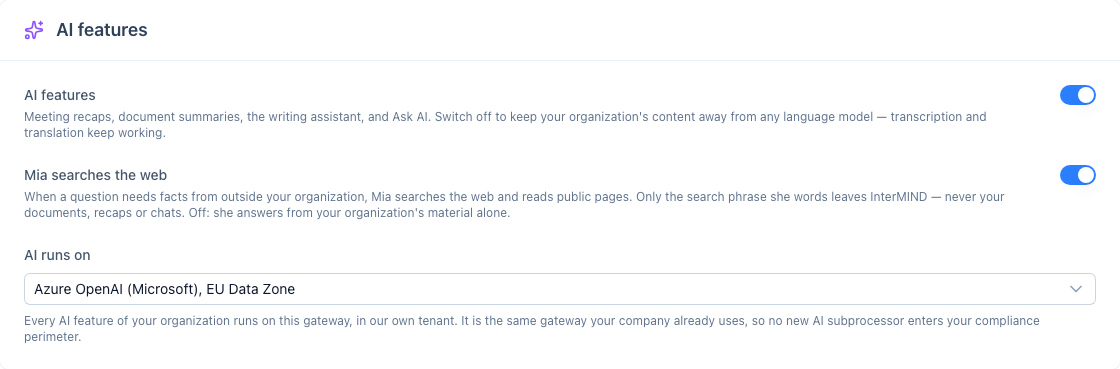
The AI features card on the Integrations page is where an organization owner or admin decides two things: whether the organization's AI features run at all, and on which cloud gateway they run. The choice applies to every AI feature at once — meeting recaps, document summaries, the writing assistant, Ask AI and Mia in meetings.
Switching AI features off
Turn the AI features switch off to keep your organization's content away from any language model. Meetings still get transcribed and translated, and chats and documents keep working — only the AI-generated parts stop: recaps arrive without a summary, documents are shared without an AI summary, the writing assistant and Ask AI are hidden, and Mia does not listen. Switch it back on at any time.
Choosing the gateway
Every AI feature runs on a language-model gateway of a hyperscaler, in InterMIND's own tenant. Pick the one your organization already uses for its own AI, so no new AI subprocessor enters your compliance perimeter:
| Gateway | Where it runs | Notes |
|---|---|---|
| Azure OpenAI (Microsoft) | EU Data Zone | The default for every organization |
| Google Vertex AI (Google Cloud) | EU multi-region endpoint | Available on request from the same card |
| Amazon Bedrock (AWS) | The AWS region you choose, in your own AWS account | Enter the region, the model or inference profile and an IAM access key with bedrock:InvokeModel and bedrock:InvokeModelWithResponseStream rights; models, quotas and billing stay in your account, the secret key is stored encrypted and never shown again |
All gateways are configured with zero data retention and no training on your content. What an AI call sends is only what the feature needs: the meeting transcript and chat window at meeting end for a recap, a shared document for its summary, the editor text for the writing assistant, the question for Ask AI. The list of vendors and regions is on the subprocessors page and the Security page.
Your own endpoint
Organizations that run their own model — vLLM in their data centre, or a model deployment in their own cloud tenant — choose Your own endpoint and enter the server URL, the model name and, if the server needs one, an API key. From then on every AI feature of the organization calls that server and nothing else. The key is stored encrypted and is never shown again; leave the field empty on later edits to keep it. Mia answers in text on your own endpoint, because the voice comes from the gateway's vendor.
Help from any screen
The panel on the right is Help: open it with Cmd/Ctrl + / or Help in the sidebar, on any page and in a meeting. It knows the screen you are on, so «what does this button do?» is answered for that screen, and it explains how InterMIND works. Signed in, on any plan, it also answers from your meetings, chats and files and can prepare a meeting link or a message for you to confirm; that conversation is saved for you and is there again on any page and after a reload. Every member has their own daily budget for these answers, set by their organization's plan: about ten questions a day on Basic, more on Pro and Business, no daily limit on Enterprise. It renews at midnight UTC; when it is spent the panel says so and names the time, and the rest of the panel — the saved conversation, the documentation — stays. Without an account, or when the organization has switched AI features off, the panel answers from the documentation.
The panel follows what is open. With a channel open it reads that channel's chat, files and meeting recaps; in a meeting it also reads the live transcript. The header of the panel names the channel or meeting it is answering about — or Your account when nothing is open — and every answer keeps the mark of where it was asked. There is one thread: a question asked in a channel is there again on any other screen.
Mia searches the web
In the Help panel, Mia can look outside your organization when a question needs it: news, prices, a company, a law, the documentation of another product. She searches the web, reads the public pages worth reading, and gives the address of every fact she takes from them. Aloud in a meeting she does not search.
What leaves InterMIND is the search phrase Mia words herself — never your documents, recaps or chats, and nothing that identifies you or your organization. The search runs on the Brave Search API (see Subprocessors). Pages are read as any visitor would read them: public pages only, within the site's robots.txt, no sign-in, no cookies, up to one megabyte of HTML, plain text or PDF; scanned PDFs without a text layer and pages built entirely by scripts are not read. What a page says is treated as data — a page cannot give Mia instructions.
An owner or admin turns this off under Settings → AI features → Mia searches the web. Off means the two tools do not exist for anyone in the organization: Mia answers from your organization's material and from what she knows, and says plainly when a question would need the web.
Mia in meetings
Mia is the organization's AI participant in a meeting. She listens through the meeting transcript and answers when someone addresses her by name — «Mia, what did we agree on last time?» — or writes to her in the Help panel (Cmd/Ctrl + /) while the meeting is open. She answers from this meeting's transcript, chat and shared documents, and from the recaps of the previous sessions of the same room.
The answer follows the question. Asked aloud, Mia answers aloud to the whole room, each participant in their own language: the answer is written natively in each language present and voiced on each participant's device, so Mia is not a participant of the call itself — she is not in the recording or the transcript. Start talking and Mia stops; tap the cross next to her name to cut an answer short. Her name is needed once, to start: after her answer the conversation stays open for about a minute, and every exchange keeps it open — you can go on without her name — «and what about the deadline?» — and she decides whether that was for her or a word to someone in the room. Silence closes it. Alone in the room with Mia you never need her name: everything you say is for her. Asked in the Help panel, she answers there only: every line you write there is for her — no name, no prefix — and nobody else in the meeting sees the exchange. The panel's header names the meeting, and the answer keeps that mark. Send her a document or a screenshot with the + button and she reads it. The thread is yours, not the meeting's: it is there again on any screen and after a reload. What Mia records on your word — a decision, an action item, a follow-up link — stays in the room chat for everyone and goes into the recap.
Mia uses the host organization's gateway and its voice (Azure AI Speech or Google Cloud Text-to-Speech, EU regions), and runs while AI features are on for that organization. Aloud she answers licensed participants of paid plans: a participant on a paid plan has her voice in every meeting they join, whoever hosts it. Guests and participants on the free plan hear her answers to others, but aloud she does not answer them. The Help panel is every signed-in member's on any plan, in a meeting as on any other screen; a guest has no account and no panel thread.
Mia speaks up on her own
Her answers go to members of paid organizations, and her own notes, acting on the host's word and proposing the next step run when the host is one. Switching AI features off for the organization turns her off together with every other AI feature.
Without being asked, Mia writes short notes into the meeting chat — text only, in every language present in the room, never over someone's voice:
- At the start — what the previous session of this room decided and left open, and what is on today's agenda (the meeting's agenda note).
- Halfway and five minutes before the end — what has been decided so far, what is still open, and which agenda items have not been touched. Without a scheduled end she assumes a 45-minute meeting.
- When someone takes something on — «I'll send the estimate by Friday» becomes «Noted: Anna — send the estimate by Friday», and the note goes into the recap.
- When a question hangs — nobody answered and the answer is in a previous recap, a shared document or the chat: Mia posts it with its source. She never guesses and never searches the web.
Tell her to stay out of the talk — «Mia, be quiet», «Mia, don't interrupt» — and she does: from then on she speaks only when someone calls her by name, follows no conversation without her name, and writes no notes of her own. Anyone she answers can say it, not only the host. «Mia, go on» brings her back. Mia posts at most twenty notes an hour.
Mia does things on the host's word
The meeting host and moderators can tell Mia to act; other participants can ask her questions, but she will not act for them. She does it right away and confirms aloud and in the chat, where the host sees an Undo button for as long as the meeting lasts («Mia, undo that» works too):
- Schedule the follow-up — «Mia, set up a follow-up next Thursday at three»: a new meeting appears, the link lands in the chat and the event goes into the commander's connected Google or Microsoft calendar in their own time zone. Without a connected calendar the meeting and the link are created anyway.
- Record a decision, an action item or an open question — «Mia, note the decision: we go with vendor B»: the note appears in the chat and is part of the recap.
- Send the recap to the CRM — «Mia, send the recap to Pipedrive»: the recap of this meeting also goes to that address from the host's confirmed recap address book.
Mia proposes the next step
Before the meeting ends Mia weighs the agenda against what was said and proposes one concrete next step — a follow-up meeting for the items not covered, or an owner for a decision that was made but not stated. The host confirms with «Mia, yes» and she executes it exactly as above.